Как сделать пользовательский диалог с закругленными углами в android
что я пытаюсь сделать: Я пытаюсь сделать пользовательский диалог. С закругленными углами.
что происходит: Я могу сделать пользовательский диалог, но он не имеет закругленных углов. Я попытался добавить селектор, но все равно я не мог
Java-кода:
private void launchDismissDlg() {


        dialog = new Dialog(getActivity(), android.R.style.Theme_Dialog);

        dialog.requestWindowFeature(Window.FEATURE_NO_TITLE);

        dialog.setContentView(R.layout.dlg_dismiss);

        dialog.setCanceledOnTouchOutside(true);


        Button btnReopenId = (Button) dialog.findViewById(R.id.btnReopenId);

        Button btnCancelId = (Button) dialog.findViewById(R.id.btnCancelId);


        btnReopenId.setOnClickListener(new OnClickListener() {

            @Override

            public void onClick(View v) {


            }

        });


        btnCancelId.setOnClickListener(new OnClickListener() {

            @Override

            public void onClick(View v) {


            }

        });

        dialog.setCanceledOnTouchOutside(false);

        dialog.getWindow().setSoftInputMode(WindowManager.LayoutParams.SOFT_INPUT_STATE_ALWAYS_HIDDEN);

        dialog.getWindow().setLayout(LayoutParams.MATCH_PARENT,LayoutParams.WRAP_CONTENT);

        dialog.show();


    }
XML-код:
<?xml version="1.0" encoding="utf-8"?>
<LinearLayout xmlns:android="http://schemas.android.com/apk/res/android"
android:layout_width="match_parent"
android:layout_height="match_parent"
android:background="@android:color/white"
android:orientation="vertical" >
<TableLayout
android:layout_width="match_parent"
android:layout_height="wrap_content" >
<TableRow
android:id="@+id/tableRow1"
android:layout_width="match_parent"
android:layout_height="wrap_content"
android:layout_marginTop="20dp"
android:gravity="center" >
<TextView
android:id="@+id/textView1"
android:layout_width="wrap_content"
android:layout_height="wrap_content"
android:gravity="center"
android:text=""I WOULD LIKE TO DISMISS THE VENDOR""
android:textColor="@color/col_dlg_blue_light"
android:textSize="14sp"
android:textStyle="bold" />
</TableRow>
<TableRow
android:id="@+id/tableRow2"
android:layout_width="match_parent"
android:layout_height="wrap_content"
android:layout_marginTop="5dp"
android:gravity="center" >
<TextView
android:id="@+id/textView2"
android:layout_width="wrap_content"
android:layout_height="wrap_content"
android:gravity="center"
android:text="BECAUSE"
android:textColor="@android:color/black"
android:textStyle="bold" />
</TableRow>
<TableRow
android:id="@+id/tableRow4"
android:layout_width="match_parent"
android:layout_height="wrap_content" >
<Button
android:id="@+id/btnReopenId"
android:layout_width="0dp"
android:layout_height="wrap_content"
android:layout_weight="1"
android:background="@color/col_dlg_green_light"
android:text="REOPEN"
android:padding="5dp"
android:textSize="14sp"
android:textColor="@android:color/white"
android:textStyle="bold" />
<Button
android:id="@+id/btnCancelId"
android:layout_width="0dp"
android:layout_height="wrap_content"
android:layout_weight="1"
android:background="@color/col_dlg_pink_light"
android:text="CANCEL"
android:padding="5dp"
android:textSize="14sp"
android:textColor="@android:color/white"
android:textStyle="bold" />
</TableRow>
</TableLayout>
</LinearLayout>
6 ответов:
создать xml в drawable, скажем dialog_bg.xml
<?xml version="1.0" encoding="utf-8"?>
<shape xmlns:android="http://schemas.android.com/apk/res/android">
    <solid
        android:color="@color/white"/>
    <corners
        android:radius="30dp" />
    <padding
        android:left="10dp"
        android:top="10dp"
        android:right="10dp"
        android:bottom="10dp" />
</shape>
установите его в качестве фона в вашем макете xml
android:background="@drawable/dialog_bg"установите фон корневого представления диалогового окна прозрачным, потому что Android помещает макет диалогового окна в корневой вид, который скрывает углы в пользовательском макете.
dialog.getWindow().setBackgroundDrawable(new ColorDrawable(Color.TRANSPARENT));
вам нужно сделать следующее:
создать фон с закругленными углами для фона диалогового окна:
<?xml version="1.0" encoding="utf-8"?>
<shape xmlns:android="http://schemas.android.com/apk/res/android"
android:shape="rectangle" >

    <solid android:color="#fff" />

    <corners
        android:bottomLeftRadius="8dp"
        android:bottomRightRadius="8dp"
        android:topLeftRadius="8dp"
        android:topRightRadius="8dp" />

</shape>
Теперь в XML-файле вашего диалога в корневом макете используйте этот фон с требуемым полем:
android:layout_marginLeft="20dip"
android:layout_marginRight="20dip"
android:background="@drawable/dialog_background"
наконец, в части java вам нужно сделать это:
dialog.requestWindowFeature(Window.FEATURE_NO_TITLE);
dialog.setContentView(layoutResId);
View v = getWindow().getDecorView();
v.setBackgroundResource(android.R.color.transparent);
Это прекрасно работает для меня.
dialog.getWindow().setBackgroundDrawable(new ColorDrawable(Color.TRANSPARENT));это работает для меня
вы можете использовать форму для фона как-
<shape xmlns:android="http://schemas.android.com/apk/res/android"
android:shape="rectangle">
<solid android:color="@android:color/transparent"/>
<corners android:radius="10dp" />
<padding android:left="10dp" android:right="10dp"/>
</shape>
посмотреть этой за подробностями.
dimen.xml
<?xml version="1.0" encoding="utf-8"?>
<resources>

    <integer name="weight">1</integer>

    <dimen name="dialog_top_radius">21dp</dimen>

    <dimen name="textview_dialog_head_min_height">50dp</dimen>
    <dimen name="textview_dialog_drawable_padding">5dp</dimen>

    <dimen name="button_dialog_layout_margin">3dp</dimen>


</resources>
стили.xml
<style name="TextView.Dialog">
        <item name="android:paddingLeft">@dimen/dimen_size</item>
        <item name="android:paddingRight">@dimen/dimen_size</item>
        <item name="android:gravity">center_vertical</item>
        <item name="android:textColor">@color/black</item>
    </style>

    <style name="TextView.Dialog.Head">
        <item name="android:minHeight">@dimen/textview_dialog_head_min_height</item>
        <item name="android:textColor">@color/white</item>
        <item name="android:background">@drawable/dialog_title_style</item>
        <item name="android:drawablePadding">@dimen/textview_dialog_drawable_padding</item>
    </style>

    <style name="TextView.Dialog.Text">
        <item name="android:textAppearance">@style/Font.Medium.16</item>
    </style>

    <style name="Button" parent="Base.Widget.AppCompat.Button">
        <item name="android:layout_height">@dimen/button_min_height</item>
        <item name="android:layout_width">match_parent</item>
        <item name="android:textColor">@color/white</item>
        <item name="android:gravity">center</item>
        <item name="android:textAppearance">@style/Font.Medium.20</item>
    </style>

 <style name="Button.Dialog">
        <item name="android:layout_weight">@integer/weight</item>
        <item name="android:layout_margin">@dimen/button_dialog_layout_margin</item>
    </style>

    <style name="Button.Dialog.Middle">
        <item name="android:background">@drawable/button_primary_selector</item>
    </style>
dialog_title_style.xml
<?xml version="1.0" encoding="utf-8"?>
<shape xmlns:android="http://schemas.android.com/apk/res/android"
    android:shape="rectangle">

    <gradient
        android:angle="270"
        android:endColor="@color/primaryDark"
        android:startColor="@color/primaryDark" />

    <corners
        android:topLeftRadius="@dimen/dialog_top_radius"
        android:topRightRadius="@dimen/dialog_top_radius" />

</shape>
dialog_background.xml
<?xml version="1.0" encoding="utf-8"?>
<shape xmlns:android="http://schemas.android.com/apk/res/android">
    <solid android:color="@color/backgroundDialog" />
    <corners
        android:topLeftRadius="@dimen/dialog_top_radius"
        android:topRightRadius="@dimen/dialog_top_radius" />
    <padding />
</shape>
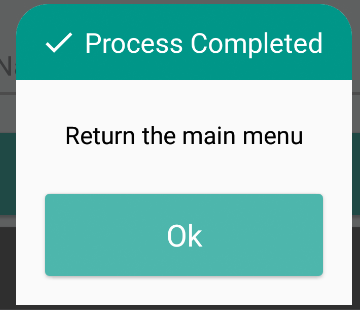
dialog_one_button.xml
<?xml version="1.0" encoding="utf-8"?>
<LinearLayout xmlns:android="http://schemas.android.com/apk/res/android"
    android:layout_width="match_parent"
    android:layout_height="wrap_content"
    android:background="@drawable/dailog_background"
    android:orientation="vertical">

    <TextView
        android:id="@+id/dialogOneButtonTitle"
        style="@style/TextView.Dialog.Head"
        android:text="Process Completed" />

    <LinearLayout
        android:layout_width="match_parent"
        android:layout_height="wrap_content"
        android:layout_marginBottom="16dp"
        android:layout_marginLeft="16dp"
        android:layout_marginRight="16dp"
        android:orientation="vertical">

        <TextView
            android:id="@+id/dialogOneButtonText"
            style="@style/TextView.Dialog.Text"
            android:text="Return the main menu" />

        <LinearLayout
            android:layout_width="match_parent"
            android:layout_height="wrap_content"
            android:orientation="horizontal">

            <Button
                android:id="@+id/dialogOneButtonOkButton"
                style="@style/Button.Dialog.Middle"
                android:text="Ok" />

        </LinearLayout>

    </LinearLayout>

</LinearLayout>
OneButtonDialog.java
package com.example.sametoztoprak.concept.dialogs;

import android.app.Dialog;
import android.graphics.Color;
import android.graphics.drawable.ColorDrawable;
import android.os.Bundle;
import android.support.v7.app.AppCompatActivity;
import android.view.View;
import android.view.Window;
import android.widget.Button;
import android.widget.TextView;

import com.example.sametoztoprak.concept.R;
import com.example.sametoztoprak.concept.models.DialogFields;

/**
 * Created by sametoztoprak on 26/09/2017.
 */

public class OneButtonDialog extends Dialog implements View.OnClickListener {

    private static OneButtonDialog oneButtonDialog;
    private static DialogFields dialogFields;

    private Button dialogOneButtonOkButton;
    private TextView dialogOneButtonText;
    private TextView dialogOneButtonTitle;

    public OneButtonDialog(AppCompatActivity activity) {
        super(activity);
    }

    public static OneButtonDialog getInstance(AppCompatActivity activity, DialogFields dialogFields) {
        OneButtonDialog.dialogFields = dialogFields;
        return oneButtonDialog = (oneButtonDialog == null) ? new OneButtonDialog(activity) : oneButtonDialog;
    }

    @Override
    protected void onCreate(Bundle savedInstanceState) {
        super.onCreate(savedInstanceState);
        requestWindowFeature(Window.FEATURE_NO_TITLE);
        setContentView(R.layout.dialog_one_button);
        getWindow().setBackgroundDrawable(new ColorDrawable(Color.TRANSPARENT));

        dialogOneButtonTitle = (TextView) findViewById(R.id.dialogOneButtonTitle);
        dialogOneButtonText = (TextView) findViewById(R.id.dialogOneButtonText);
        dialogOneButtonOkButton = (Button) findViewById(R.id.dialogOneButtonOkButton);

        dialogOneButtonOkButton.setOnClickListener(this);
    }

    @Override
    protected void onStart() {
        super.onStart();
        dialogOneButtonTitle.setText(dialogFields.getTitle());
        dialogOneButtonText.setText(dialogFields.getText());
        dialogOneButtonOkButton.setText(dialogFields.getOneButton());
    }

    @Override
    public void onClick(View v) {
        switch (v.getId()) {
            case R.id.dialogOneButtonOkButton:

                break;
            default:
                break;
        }
        dismiss();
    }
}
Я сделал новый способ, не имея фона drawable является то, что сделать его иметь cardview в качестве родителя и дать ему
app:cardCornerRadius="20dp"а затем дать это в классе javadialog.getWindow().setBackgroundDrawable(new ColorDrawable(Color.TRANSPARENT));это еще один способ сделать это
Comments