Как исправить вид в сворачивающейся панели инструментов при прокрутке?
Я хочу реализовать сворачивающуюся панель инструментов с двумя EditText в ней, с целью пользовательского ввода. Я следую этому ответу. Ответ дает идеальное решение для добавления двух EditText в сворачивающуюся панель инструментов. Но поведение не такое, как ожидалось.
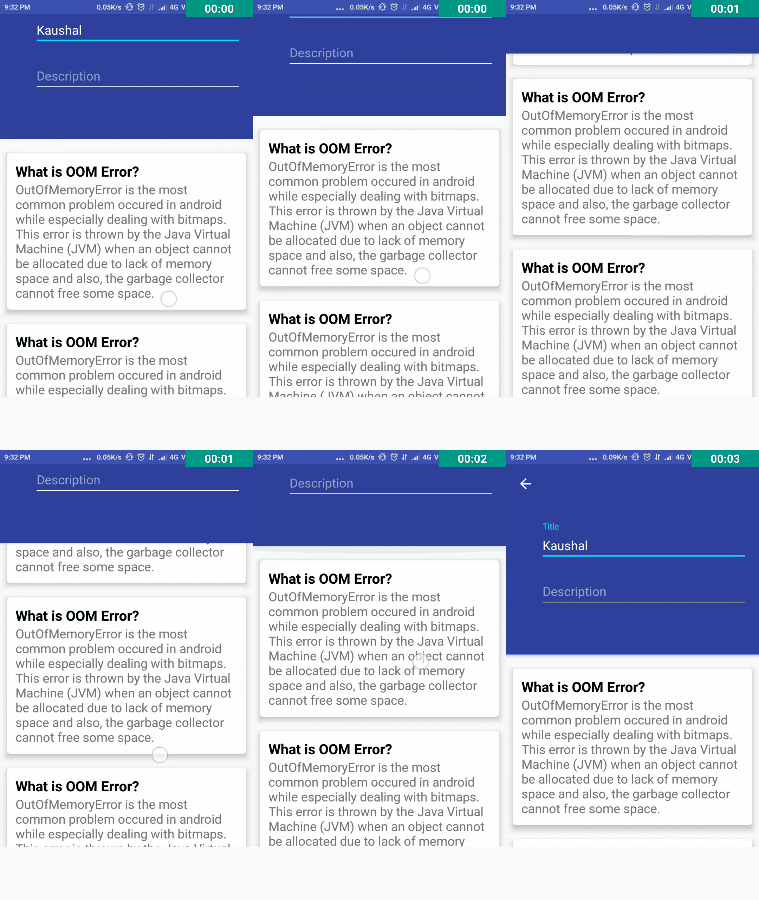
Чего я достиг:
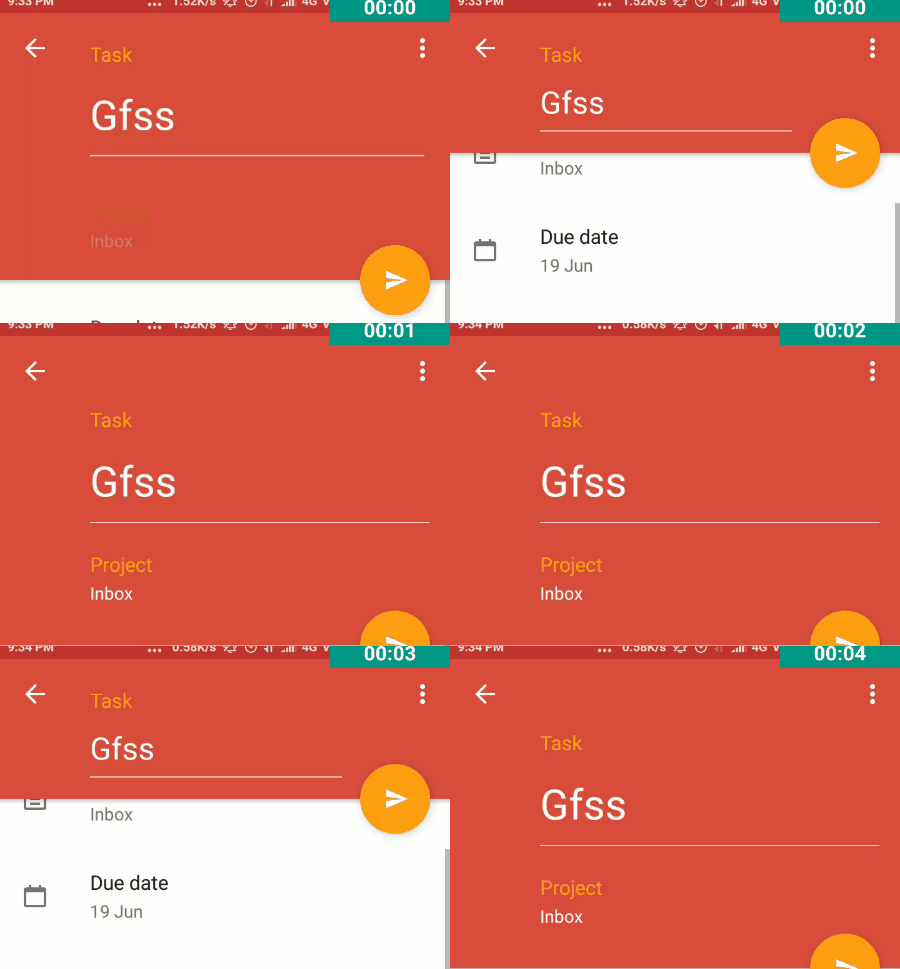
Ожидаемое Поведение:
Мой XML-код
<android.support.design.widget.CoordinatorLayout

xmlns:android="http://schemas.android.com/apk/res/android"

xmlns:app="http://schemas.android.com/apk/res-auto"

android:layout_width="match_parent"

android:layout_height="wrap_content"

android:fitsSystemWindows="true">


<android.support.design.widget.AppBarLayout

    android:id="@+id/appbar"

    android:layout_width="match_parent"

    android:layout_height="wrap_content"      >


    <android.support.design.widget.CollapsingToolbarLayout

        android:id="@+id/collapsing_tool_bar_layout"

        android:layout_width="match_parent"

        android:layout_height="wrap_content"

        app:elevation="0dp"

        app:expandedTitleTextAppearance="@style/Widget.AppCompat.ActionBar.TabText"

        app:layout_scrollFlags="scroll|enterAlways"

        app:statusBarScrim="?attr/colorAccent">


        <android.support.v7.widget.Toolbar

            android:id="@+id/toolbar_1"

            android:layout_width="match_parent"

            android:layout_height="?attr/actionBarSize"

            android:background="@color/primary"

            android:minHeight="?attr/actionBarSize"

            android:theme="@style/ThemeOverlay.AppCompat.Dark.ActionBar"

            app:layout_collapseMode="none"

            app:layout_scrollFlags="scroll|exitUntilCollapsed"

            app:popupTheme="@style/ThemeOverlay.AppCompat.Light">

        </android.support.v7.widget.Toolbar>


    </android.support.design.widget.CollapsingToolbarLayout>


    <android.support.v7.widget.Toolbar

        android:id="@+id/toolbar_2"

        android:layout_width="match_parent"

        android:layout_height="wrap_content"

        android:background="@color/primary"

        android:minHeight="?attr/actionBarSize"

        android:theme="@style/ThemeOverlay.AppCompat.Dark.ActionBar"

        app:layout_collapseMode="none"

        app:elevation="0dp"

        app:layout_scrollFlags="scroll|exitUntilCollapsed"

        app:popupTheme="@style/ThemeOverlay.AppCompat.Light">


        <LinearLayout

            android:layout_width="match_parent"

            android:layout_height="wrap_content"

            android:orientation="vertical"

            android:paddingLeft="32dp"

            android:paddingTop="16dp"

            android:paddingBottom="56dp"

            android:paddingRight="16dp">


            <android.support.design.widget.TextInputLayout

                android:id="@+id/lNameLayout"

                android:layout_width="match_parent"

                android:layout_height="wrap_content"

                android:layout_below="@+id/fNameLayout"

                android:layout_marginTop="10dp">


                <EditText

                    android:id="@+id/ltitle"

                    android:layout_width="match_parent"

                    android:layout_height="wrap_content"

                    android:ems="10"

                    android:hint="Title"/>

            </android.support.design.widget.TextInputLayout>


            <android.support.design.widget.TextInputLayout

                android:id="@+id/lNameLayout2"

                android:layout_width="match_parent"

                android:layout_height="wrap_content"

                android:layout_below="@+id/fNameLayout"

                android:layout_marginTop="10dp"

                android:layout_marginBottom="10dp">


                <EditText

                    android:id="@+id/ldesc"

                    android:layout_width="match_parent"

                    android:layout_height="wrap_content"

                    android:ems="10"

                    android:hint="Description"/>

            </android.support.design.widget.TextInputLayout>


        </LinearLayout>

    </android.support.v7.widget.Toolbar>


</android.support.design.widget.AppBarLayout>


<android.support.v4.widget.NestedScrollView

    android:layout_width="match_parent"

    app:layout_behavior="@string/appbar_scrolling_view_behavior"

    android:layout_height="match_parent">

    <LinearLayout

        android:layout_width="match_parent"

        android:layout_height="match_parent"

        android:orientation="vertical"

        android:paddingTop="10dp">


        <!--my widgets here-->


    </LinearLayout>

</android.support.v4.widget.NestedScrollView>
Я знаю, что могу сделать этот тип стайлинг с использованием scrollFlag. Я читал этот пост о флагах прокрутки.Но не могу найти, как именно его использовать для этой цели.
Я также хочу изменить размер шрифта EditText, как показано в приведенном выше GIF.
Но первый вопрос заключается в том, как исправить одно представление в панели инструментов и скрыть другое, когда пользователь прокручивает вверх. Было бы неплохо, если бы кто-то объяснил с подходящим примером.
2 ответов:
Я уверен, что Todoist делает это по-другому, но все же...
Вот XML-макет. Основная идея заключается в том, что вид, который предполагается закрепить, должен быть внутри
Toolbar, когда другой вид, который вы хотите скрыть, должен быть внутриCollapsingToolbarLayoutс приличным верхним краем, чтобы предотвратить перекрытие:Затем, чтобы добиться одинакового размера шрифта и анимации верхнего поля, мы можем реализовать<android.support.design.widget.CoordinatorLayout xmlns:android="http://schemas.android.com/apk/res/android" xmlns:app="http://schemas.android.com/apk/res-auto" android:layout_width="match_parent" android:layout_height="match_parent"> <android.support.design.widget.AppBarLayout android:id="@+id/appbar" android:layout_width="match_parent" android:layout_height="wrap_content"> <android.support.design.widget.CollapsingToolbarLayout android:id="@+id/collapsing_tool_bar_layout" android:layout_width="match_parent" android:layout_height="wrap_content" app:layout_scrollFlags="scroll|exitUntilCollapsed" app:statusBarScrim="?attr/colorAccent"> <FrameLayout android:layout_width="match_parent" android:layout_height="wrap_content" app:layout_collapseMode="parallax" android:layout_marginLeft="72dp" android:layout_marginRight="16dp" android:layout_marginBottom="32dp" android:layout_marginTop="136dp"> <android.support.design.widget.TextInputLayout android:id="@+id/lNameLayout2" android:layout_width="match_parent" android:layout_height="wrap_content" android:theme="@style/ThemeOverlay.AppCompat.Dark.ActionBar"> <android.support.design.widget.TextInputEditText android:id="@+id/ldesc" android:layout_width="match_parent" android:layout_height="wrap_content" android:ems="10" android:hint="Description"/> </android.support.design.widget.TextInputLayout> </FrameLayout> <android.support.v7.widget.Toolbar android:id="@+id/toolbar" android:layout_width="match_parent" android:layout_height="wrap_content" android:background="@color/primary" android:minHeight="?attr/actionBarSize" android:theme="@style/ThemeOverlay.AppCompat.Dark.ActionBar" app:layout_collapseMode="pin" app:popupTheme="@style/ThemeOverlay.AppCompat.Light"> <android.support.design.widget.TextInputLayout android:id="@+id/lNameLayout" android:layout_width="match_parent" android:layout_height="wrap_content" android:layout_marginRight="16dp" android:layout_marginBottom="16dp" android:layout_marginTop="48dp"> <android.support.design.widget.TextInputEditText android:id="@+id/title" android:layout_width="match_parent" android:layout_height="wrap_content" android:hint="Title" android:textSize="30sp" android:textColor="@android:color/white" android:ems="10"/> </android.support.design.widget.TextInputLayout> </android.support.v7.widget.Toolbar> </android.support.design.widget.CollapsingToolbarLayout> </android.support.design.widget.AppBarLayout> <android.support.v4.widget.NestedScrollView android:layout_width="match_parent" android:layout_height="match_parent" android:scrollbars="none" app:layout_behavior="@string/appbar_scrolling_view_behavior"> <!-- your content here --> </android.support.v4.widget.NestedScrollView> </android.support.design.widget.CoordinatorLayout>AppBarLayout.OnOffsetChangedListenerи анимировать наши свойства в соответствии с изменениями смещения прокрутки. Вот класс активности :public class MainActivity extends AppCompatActivity implements AppBarLayout.OnOffsetChangedListener { private static final float COLLAPSED_TEXT_SIZE_SP = 18f; private static final float COLLAPSED_TOP_MARGIN_DP = 24f; private static final float MARGIN_SCROLLER_MULTIPLIER = 4f; private float expandedTextSize; private float collapsedTextSize; private int expandedTopMargin; private int collapsedTopMargin; private AppBarLayout mAppBarLayout; private Toolbar mToolbar; private TextInputEditText editText; private TextInputLayout textInputLayout; @Override protected void onCreate(Bundle savedInstanceState) { super.onCreate(savedInstanceState); setContentView(R.layout.activity_main); mToolbar = (Toolbar) findViewById(R.id.toolbar); mAppBarLayout = (AppBarLayout) findViewById(R.id.appbar); editText = (TextInputEditText) findViewById(R.id.title); textInputLayout = (TextInputLayout) findViewById(R.id.lNameLayout); setSupportActionBar(mToolbar); getSupportActionBar().setDisplayHomeAsUpEnabled(true); mAppBarLayout.addOnOffsetChangedListener(this); expandedTextSize = editText.getTextSize(); collapsedTextSize = (int) TypedValue.applyDimension(TypedValue.COMPLEX_UNIT_SP, COLLAPSED_TEXT_SIZE_SP, getResources().getDisplayMetrics()); expandedTopMargin = ((ViewGroup.MarginLayoutParams) textInputLayout.getLayoutParams()).topMargin; collapsedTopMargin = (int) TypedValue.applyDimension(TypedValue.COMPLEX_UNIT_DIP, COLLAPSED_TOP_MARGIN_DP, getResources().getDisplayMetrics()); } @Override public void onOffsetChanged(AppBarLayout appBarLayout, int offset) { int maxScroll = appBarLayout.getTotalScrollRange(); float percentage = (float) Math.abs(offset) / maxScroll; float textSizeDiff = Math.abs(expandedTextSize - collapsedTextSize); int marginDiff = Math.abs(expandedTopMargin - collapsedTopMargin); //change text size along with scrolling editText.setTextSize(TypedValue.COMPLEX_UNIT_PX, expandedTextSize - textSizeDiff * percentage); //change top view margin along with scrolling ((ViewGroup.MarginLayoutParams) textInputLayout.getLayoutParams()).topMargin = (int) (expandedTopMargin - marginDiff * Math.min(1, percentage * MARGIN_SCROLLER_MULTIPLIER)); } @Override public boolean onOptionsItemSelected(MenuItem item) { if (item.getItemId() == android.R.id.home) { finish(); return true; } return super.onOptionsItemSelected(item); } }Итак, здесь для расширенного состояния я использовал значения по умолчанию, которые мы применили в нашем xml. Для свернутого состояния я определил простые константы. Не стесняйтесь подгонять их под свои нужды.
Примечание, когда вы добавляете кнопку Назад или пункты меню в
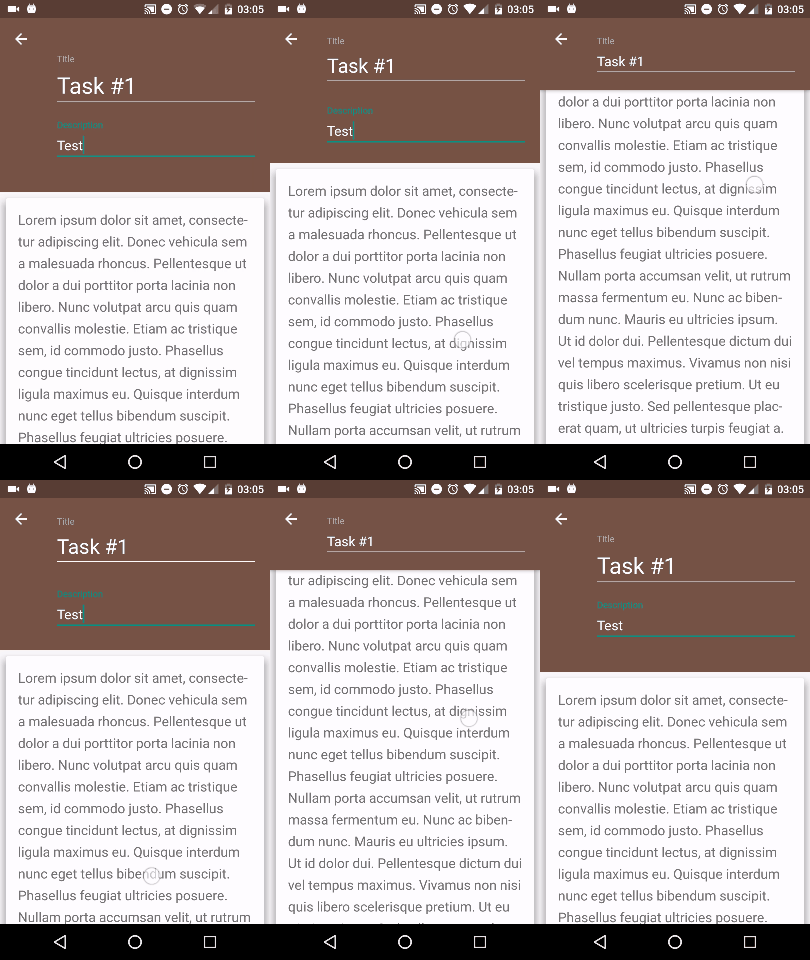
Toolbar, вы должны играть сleftиrightполями второго вида (того, который вы хотите скрыть), потому что первыйEditTextявляется частьюToolbar, поэтому его поля будут изменены согласно тому, что вы все-таки добавили.Результат:
Счастливого кодирования!
Отредактируйте свой код следующим образом
<?xml version="1.0" encoding="utf-8"?>
<android.support.design.widget.CoordinatorLayout     xmlns:android="http://schemas.android.com/apk/res/android"
    xmlns:app="http://schemas.android.com/apk/res-auto"
    xmlns:tools="http://schemas.android.com/tools"
    android:layout_width="match_parent"
    android:layout_height="match_parent"
    android:fitsSystemWindows="true"
    tools:context="com.journaldev.collapsingtoolbarlayout.ScrollingActivity">

    <android.support.design.widget.AppBarLayout
        android:id="@+id/app_bar"
        android:layout_width="match_parent"
        android:layout_height="@dimen/app_bar_height"
        android:fitsSystemWindows="true"
        android:theme="@style/AppTheme.AppBarOverlay">

        <android.support.design.widget.CollapsingToolbarLayout
            android:id="@+id/toolbar_layout"
            android:layout_width="match_parent"
            android:layout_height="match_parent"
            android:fitsSystemWindows="true"
            app:contentScrim="?attr/colorPrimary"
            app:layout_scrollFlags="scroll|exitUntilCollapsed">


            <LinearLayout
                android:layout_width="match_parent"
                android:layout_height="wrap_content"
                android:orientation="vertical"
                android:paddingLeft="32dp"
                android:paddingTop="16dp"
                android:paddingBottom="56dp"
                android:paddingRight="16dp">

            <android.support.design.widget.TextInputLayout
                android:id="@+id/lNameLayout"
                android:layout_width="match_parent"
                android:layout_height="wrap_content"
                android:layout_below="@+id/fNameLayout"
                android:layout_marginTop="10dp">

                <EditText
                    android:id="@+id/ltitle"
                    android:layout_width="match_parent"
                    android:layout_height="wrap_content"
                    android:ems="10"
                    android:hint="Title"/>
            </android.support.design.widget.TextInputLayout>

            <android.support.design.widget.TextInputLayout
                android:id="@+id/lNameLayout2"
                android:layout_width="match_parent"
                android:layout_height="wrap_content"
                android:layout_below="@+id/fNameLayout"
                android:layout_marginTop="10dp"
                android:layout_marginBottom="10dp">

                <EditText
                    android:id="@+id/ldesc"
                    android:layout_width="match_parent"
                    android:layout_height="wrap_content"
                    android:ems="10"
                    android:hint="Description"/>

            </android.support.design.widget.TextInputLayout>


        </LinearLayout>

            <android.support.v7.widget.Toolbar
                android:id="@+id/toolbar"
                android:layout_width="match_parent"
                android:layout_height="?attr/actionBarSize"
                app:layout_collapseMode="pin"
                app:popupTheme="@style/AppTheme.PopupOverlay" />

        </android.support.design.widget.CollapsingToolbarLayout>
    </android.support.design.widget.AppBarLayout>

    <include layout="@layout/content_scrolling" />

    <android.support.design.widget.FloatingActionButton
        android:id="@+id/fab"
        android:layout_width="wrap_content"
        android:layout_height="wrap_content"
        android:layout_margin="@dimen/fab_margin"
        app:layout_anchor="@id/app_bar"
        app:layout_anchorGravity="bottom|end"
        app:srcCompat="@android:drawable/ic_dialog_info" />

</android.support.design.widget.CoordinatorLayout>
Comments